Changing the website, PIN, and settings on the kiosk tablet
The tablet always shows your website full-screen. Everything below is hidden from visitors and only reachable with a PIN — use this guide whenever you need to update the website address, change the PIN, or adjust a setting.
1234Start from the normal kiosk screen
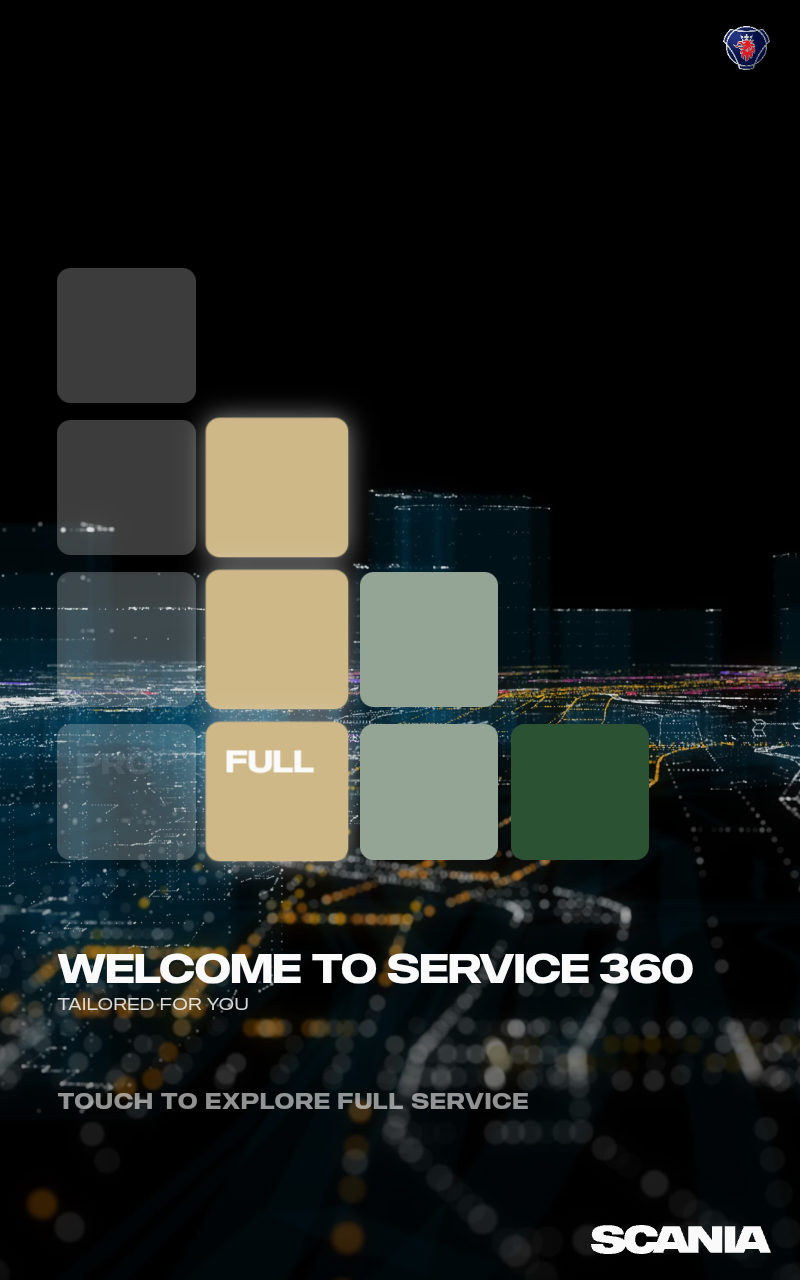
This is what visitors see — your website, full screen, with no browser bars or buttons. Everything below happens on top of this screen.
Open the hidden unlock screen
Tap the very top-right corner of the screen 5 times in a row, quickly (within about 2 seconds). A small invisible zone in that corner counts the taps — it doesn't block visitors from tapping the website underneath, so it's safe to leave switched on at all times.
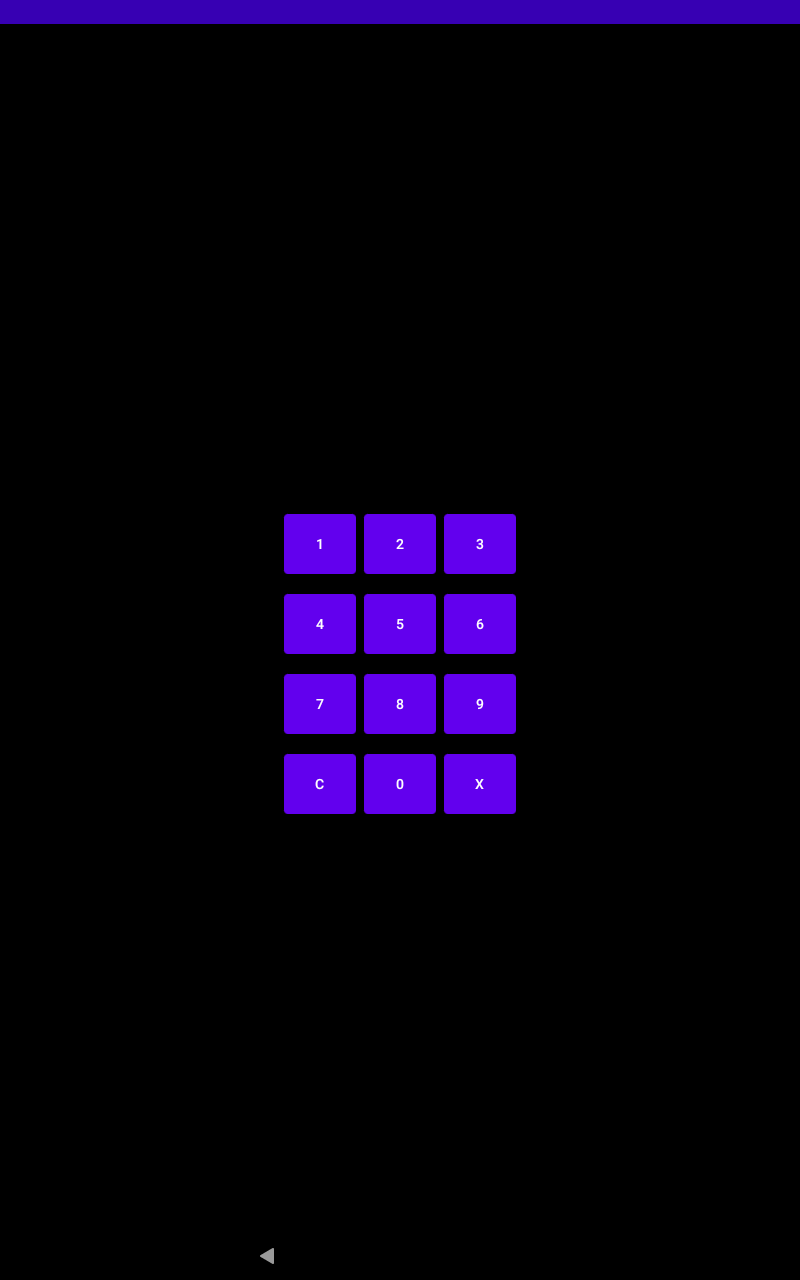
On the 5th tap, a number pad appears.
Enter the PIN
Type the 4-digit PIN. The default is 1234 until it's changed (see Step 6).
Getting it wrong just shakes the screen and clears it — try again.
Tap X to cancel and return to the website, or C to clear a mistyped digit.
The settings screen
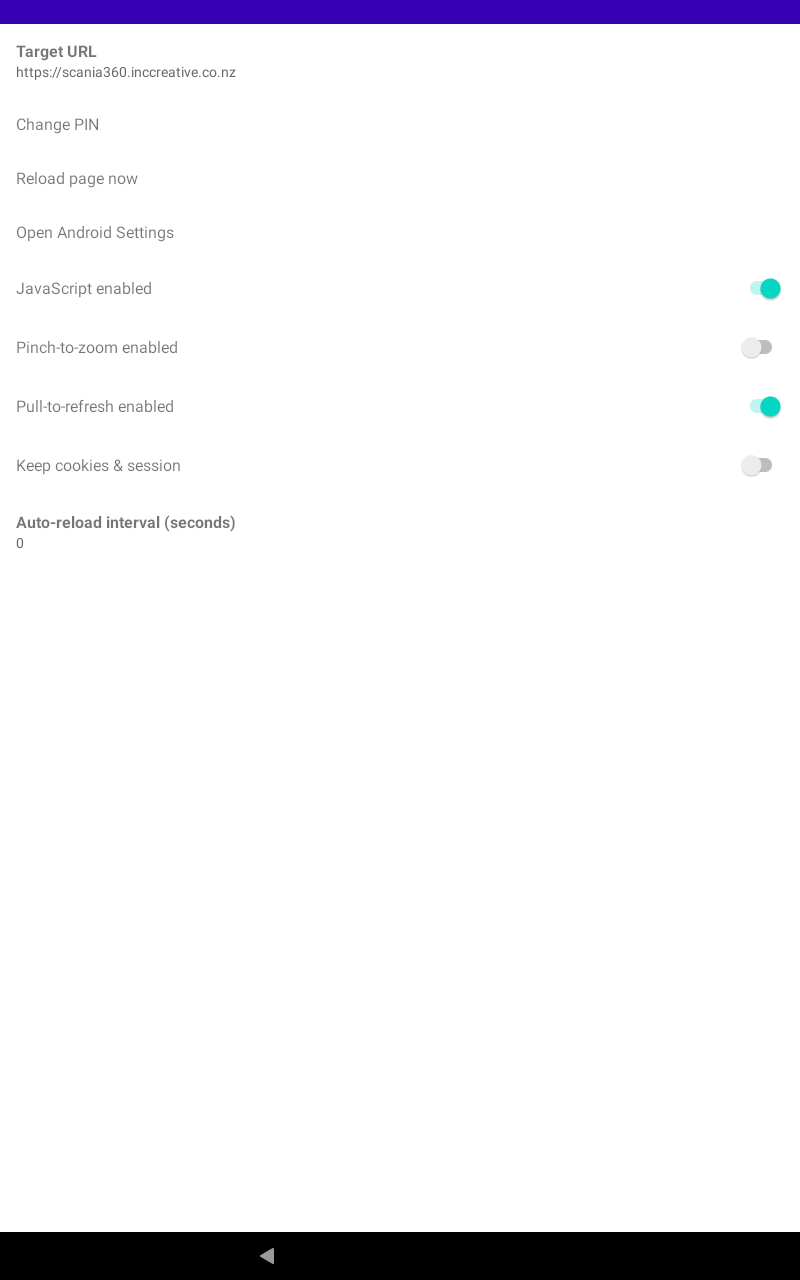
A correct PIN opens this list. Here's what each row does:
Change the website address
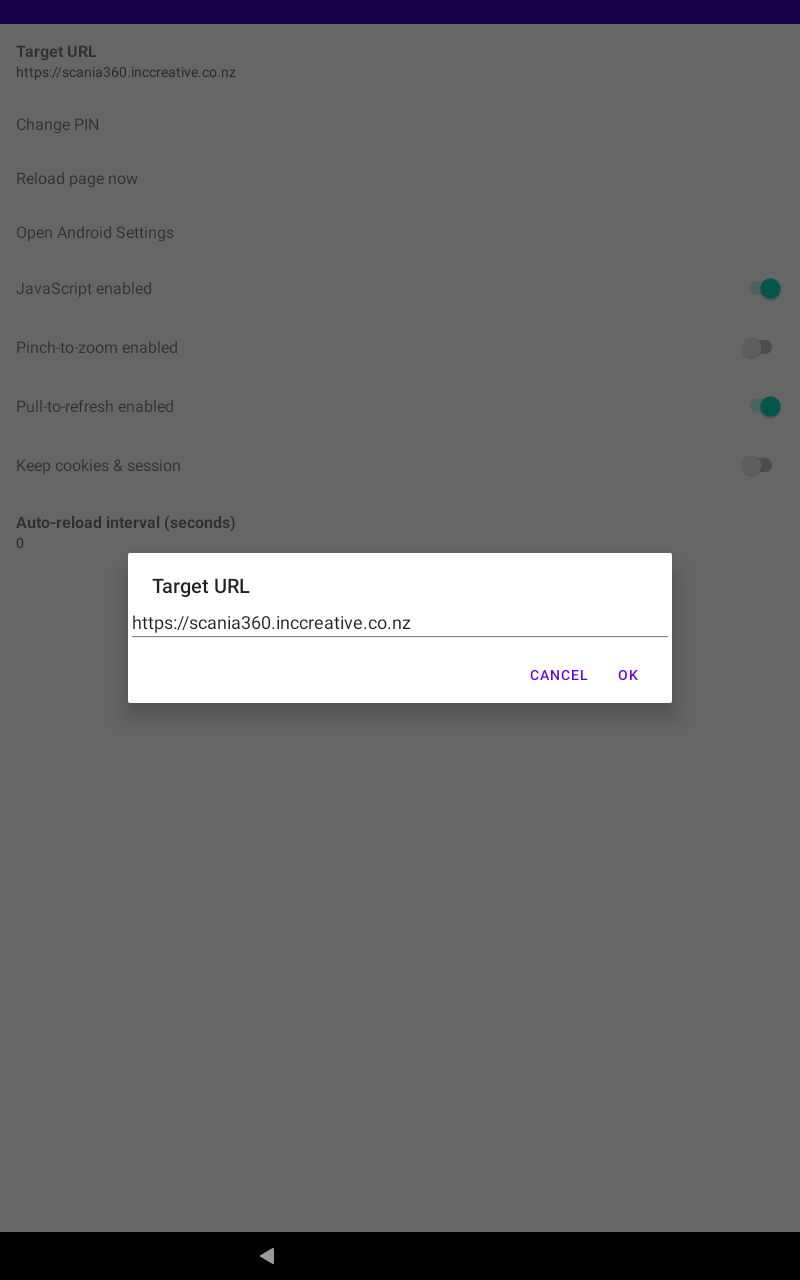
Tap Target URL at the top of the list. Clear the box, type the new full
address (starting with https://), then tap OK.
Change the PIN
Tap Change PIN, type a new 4-digit PIN, then type it again to confirm. We strongly recommend changing it from the default the first time you set the tablet up.
Get back to the website
Tap Reload page now, or use the device's Back button. Either way, the kiosk locks itself back down automatically — visitors can't get past the website to your tablet's home screen or apps.
Simple Kiosk Browser — internal staff guide.